How to Enable App Authentication
1 . Install an authenticator app in your mobile phone. You can search: Google Authenticator in Google Apps (for Android) and App Store (for iOS).
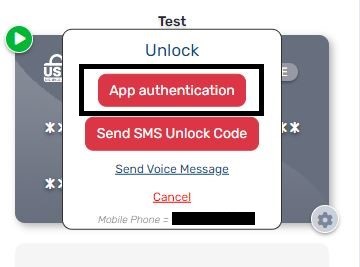
2 . Log in to your US Unlocked account and click on the card you want to view. Then choose “App Authentication”:
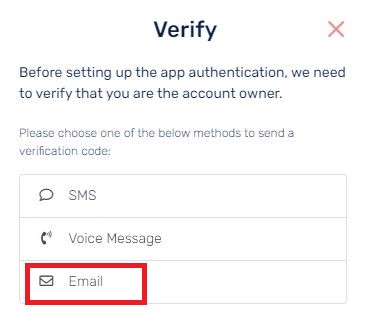
3 . Choose how you want to verify. We suggest using “Email”:
4 . Check your email for the verification code (check your Spam folder if you do not see it in your Inbox). Note that this code will expire in 2 minutes:

5 . Open the authenticator app on your phone and tap the + sign. Next, choose “Scan QR code” and scan the QR code provided on the next step.
6 . When the 6-digit PIN appears in the authenticator app, enter it, then click “Verify”.


Note that the QR code is different for each account.
7 . You are now done enabling app authentication. Make sure to save the private key provided. This is needed if you want to disable app authentication.

8 . The PIN can now be viewed via the authenticator app on your phone each time you log in as extra security.
How to disable app authentication
1 . Click on your US Unlocked card then choose “App authentication”:

2 . Click on “”Disable app auth”:

3 . Enter the private code (provided on step 7 of enabling app authentication):

Note that the private key will generate a new one after re-enabling app authentication.